Configure Defender configurations in the Library
A Microsoft Defender configuration contains a collection of MS Defender settings that you can apply to managed devices. For example, you can create a Defender configuration to scan specific types of files, indicate how threats are handled, and create scheduled scans. You can then apply that Defender configuration to one or more managed devices.
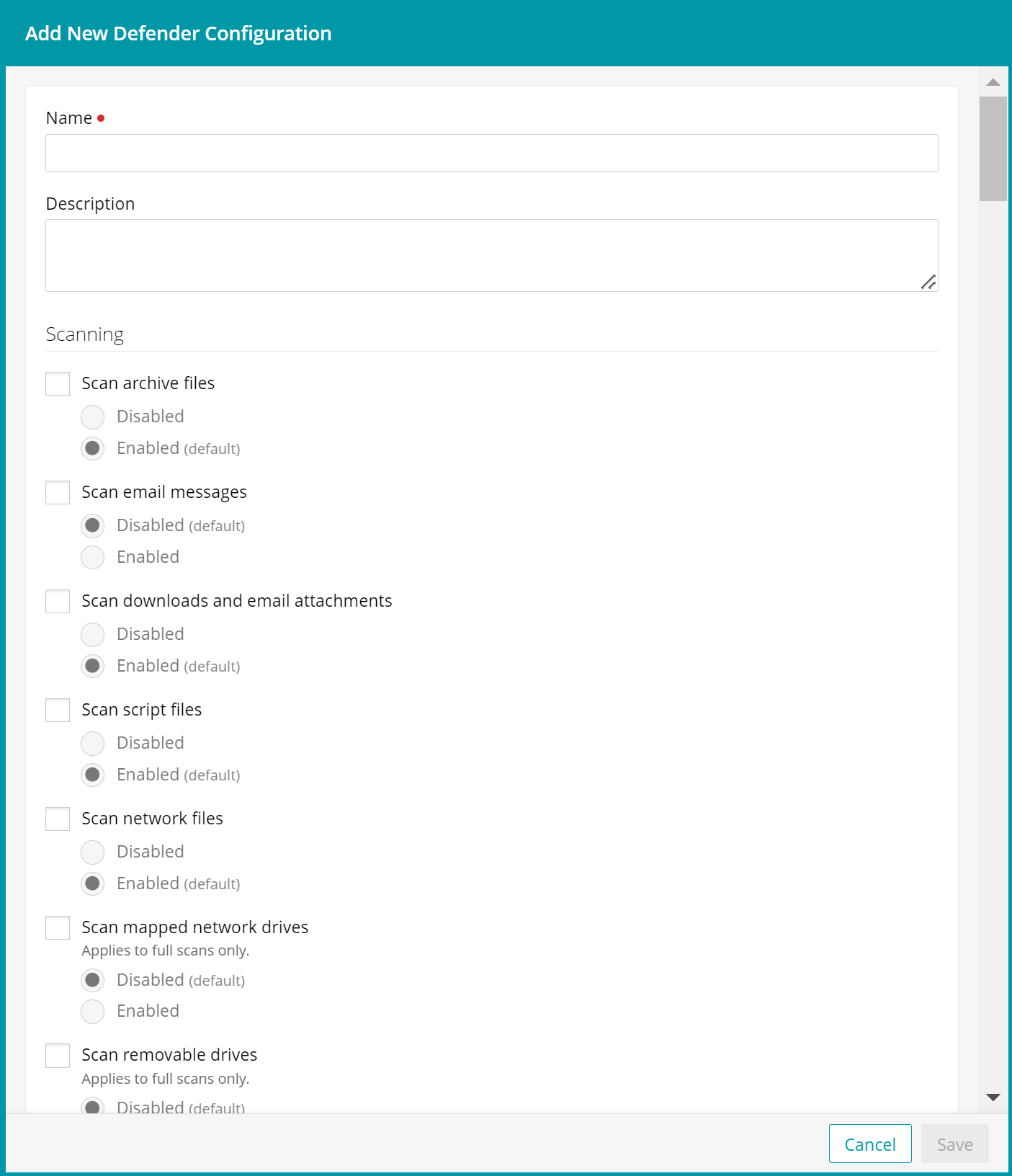
To create or edit a Defender configuration:
- Select the Libraries tab in top navigation.
- Click Security.
- Complete one of the following steps:
- To create a new Defender configuration, choose Add New > Defender.
- To edit an existing Defender configuration, select it in the list, and click Edit.
- Ensure the Defender configuration has a unique Name, and provide a Description, as applicable.
- For each Defender configuration setting that you want to apply to managed devices, select the appropriate check box, then provide the desired value.
Only configure those settings that you want to apply to target devices. Any settings that are not configured (leaving the related check boxes cleared) are ignored, and the local Defender settings on the device take place. Most settings are straightforward, allowing you to simply enable or disable them. In some cases you need to provide multiple values or choose from a list. Use the provided guidelines when making your selections.
For example:
- To scan email messages on the target device, in the Scanning section, select Scan email messages, then select Enabled.
- To ensure the target device uses its local Defender setting for scanning downloaded files and email attachments, in the Scanning section, ensure the Scan downloads and email attachments check box is cleared.
- To control the creation of child processes by Adobe Reader, in the Attack Surface Reduction (ASR) section, select Configure rules, click Add, and in the list of rules, select Block Adobe Reader from creating child processes. Next, indicate if you want to Disable this rule, Block the creation of child processes, simply Audit the creation of child processes, or Warn the user.
- When done, click Save.